Guides › Change cursor color
How to Change Cursor Color on Mac: Fill, Outline, or Both
Updated 2026-10-23 · macOS 12 Monterey to macOS 26 Tahoe
The Mac pointer has two colors: the fill (the inside, black by default) and the outline (the edge, white by default). You can change either one, or both. First get to the Pointer settings:
Open System Settings
Click the Apple menu in the top-left corner of the screen and choose System Settings.
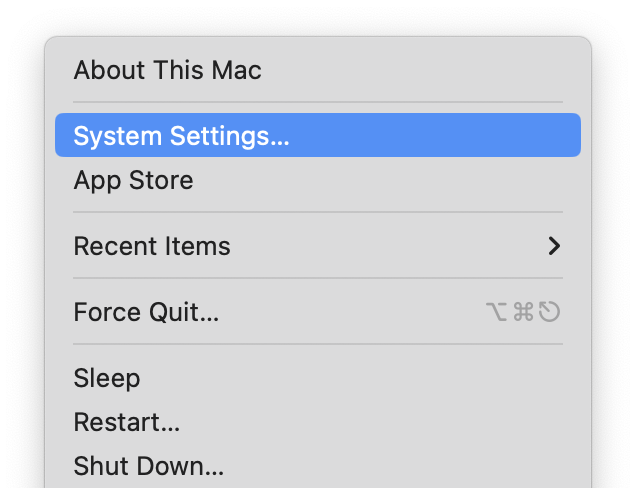 Screenshot: open-settings.pngThe Apple menu open, with System Settings… highlighted.
Go to Accessibility, then Display
Click Accessibility in the sidebar (you may need to scroll down), then click Display.
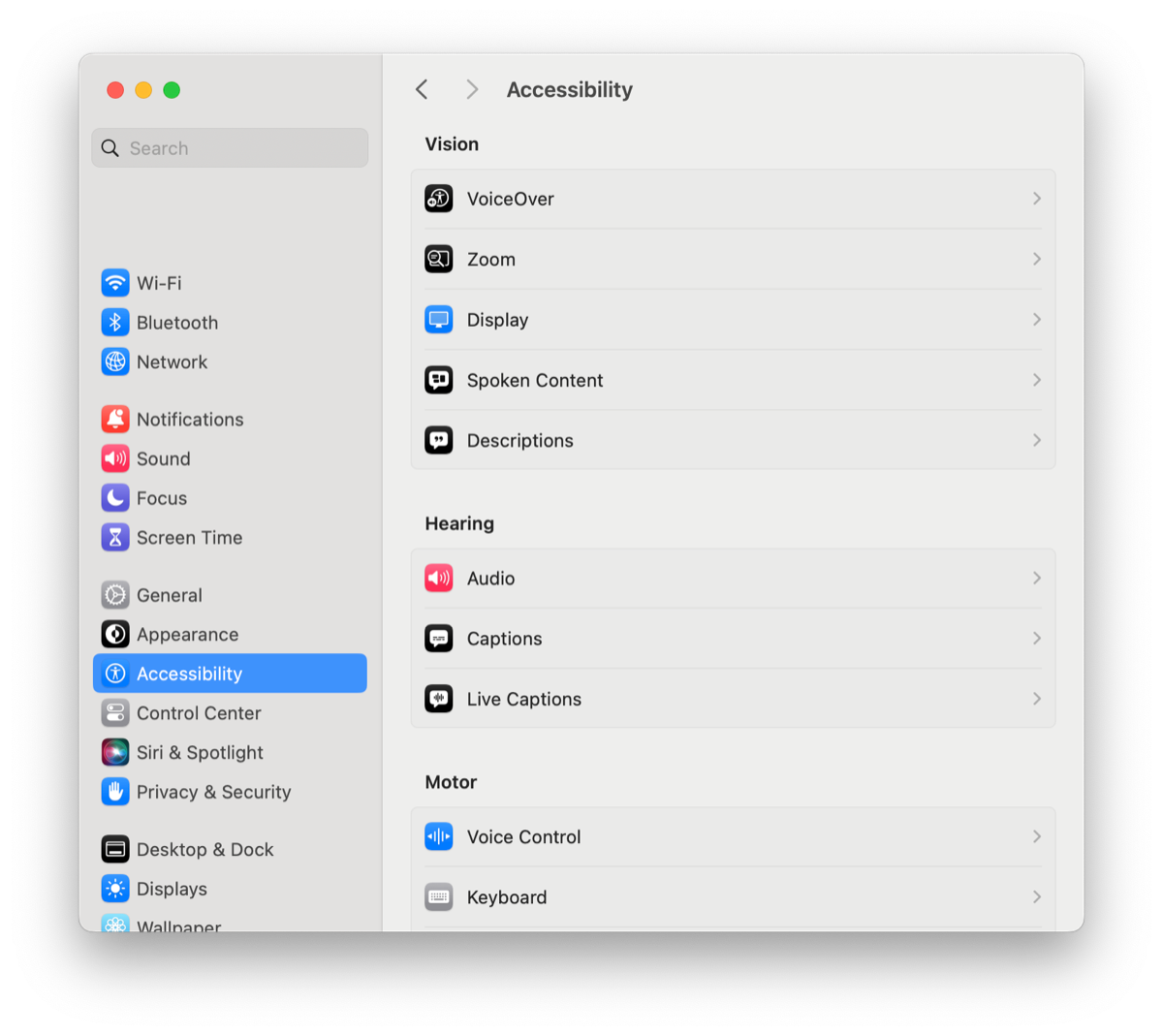 Screenshot: accessibility-display.pngSystem Settings with Accessibility selected in the sidebar and the Display row visible.
Scroll down to Pointer
Scroll to the Pointer section. Everything about the pointer is here: Shake mouse pointer to locate, Pointer size, Pointer outline color, Pointer fill color and Reset Colors.
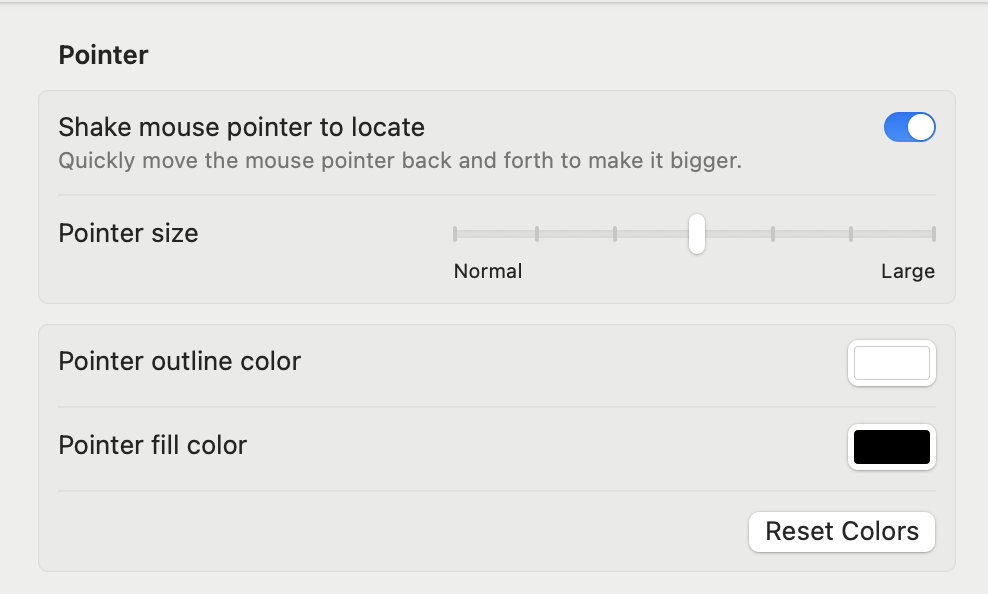 Screenshot: pointer-section.pngThe Display pane scrolled to the Pointer section, showing all five controls.
How to change the cursor fill color
Click the Pointer fill color well
It's the color swatch next to Pointer fill color.
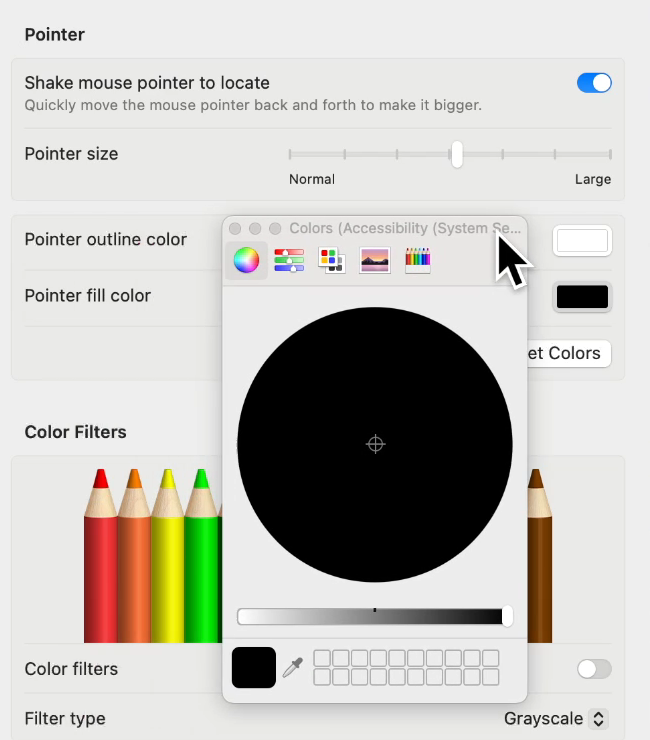 Screenshot: fill-well.pngThe Pointer fill color well clicked, with the Colors window open.
Pick a color in the Colors window
A Colors window opens. Click a color on the wheel and drag the slider below it to set how dark it is. The pointer updates right away; close the window when you're done.
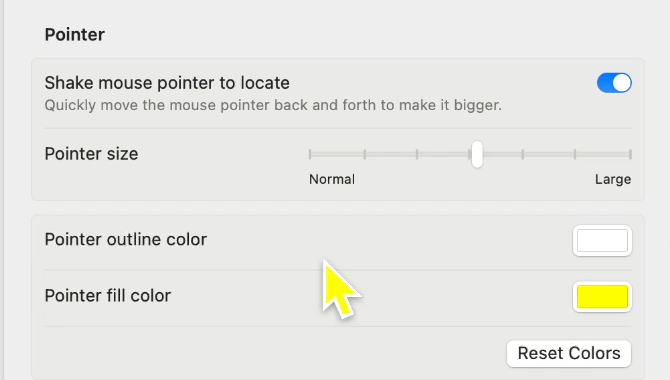 Screenshot: fill-after.pngThe pointer with a bright fill (for example yellow). Frame from a screen recording.
How to change the cursor outline color
Click the Pointer outline color well
It's the swatch next to Pointer outline color.
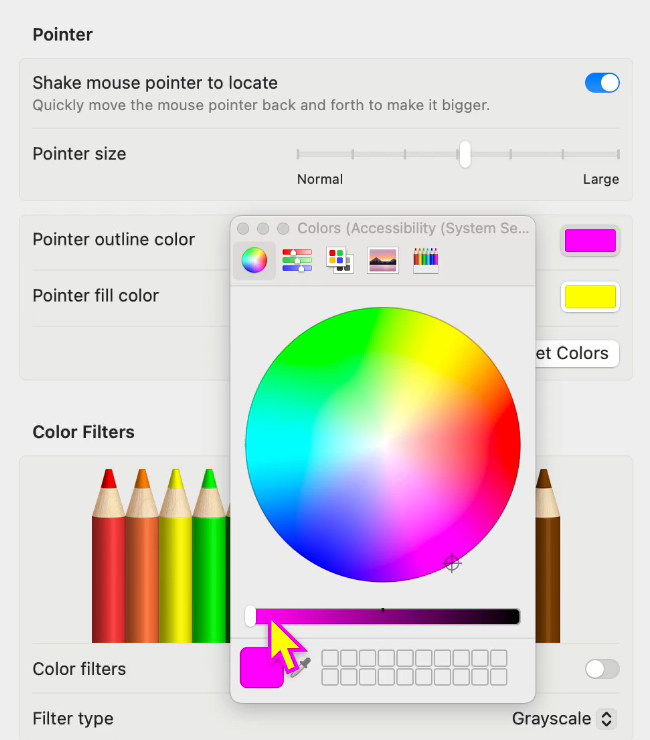 Screenshot: outline-well.pngThe Pointer outline color well clicked, with the Colors window open.
Pick a color in the Colors window
Same window as for the fill. A dark outline helps on light backgrounds; a light outline helps on dark ones.
How to change both fill and outline
Set the fill first, then the outline, using the steps above. Pick two colors that contrast with each other, so the pointer stands out on both light and dark backgrounds. Some pairs to try:
| Fill | Outline | Good for |
|---|---|---|
| Yellow | Black | Seeing it on anything, light or dark |
| White | Black | Dark mode and dark apps |
| Red | White | Presenting and projectors |
| Blue | White | Screen recordings and tutorials |

How to pick an exact color
In the full Colors window, choose the sliders tab and set it to RGB. There you can type a hex code such as #FF3B30, handy for matching a brand color in product videos.
How to change the colors back
Click Reset Colors in the same section. It restores the white outline and black fill. More in how to get your cursor back to normal.
On older versions of macOS
- macOS 13 Ventura and later (Sonoma, Sequoia, Tahoe): System Settings → Accessibility → Display → Pointer, as above.
- macOS 12 Monterey: Apple menu → System Preferences → Accessibility → Display → Pointer. Apple's guide for Monterey.
- macOS 11 Big Sur and earlier: size only. Pointer colors arrived in Monterey.
Why didn't the color change in some apps?
Some apps, often games and some design tools, draw their own cursor and ignore the system pointer settings. The color comes back when you switch to another app.
Questions
How do I change my cursor color on a Mac?
Open System Settings → Accessibility → Display → Pointer, click the Pointer fill color or Pointer outline color well, and pick a color.
What is the cursor fill color?
The color inside the arrow. It's black by default.
What is the cursor outline color?
The color of the arrow's edge. It's white by default.
Can I change the cursor color on macOS Big Sur?
No. Pointer colors were added in macOS 12 Monterey.
How do I reset the cursor color?
Click Reset Colors in the Pointer section of Accessibility → Display.