Guides › Change cursor size
How to Change Cursor Size on Mac (and Go Bigger Than 4×)
Updated 2026-10-23 · macOS 12 Monterey to macOS 26 Tahoe
Open System Settings
Click the Apple menu in the top-left corner of the screen and choose System Settings.
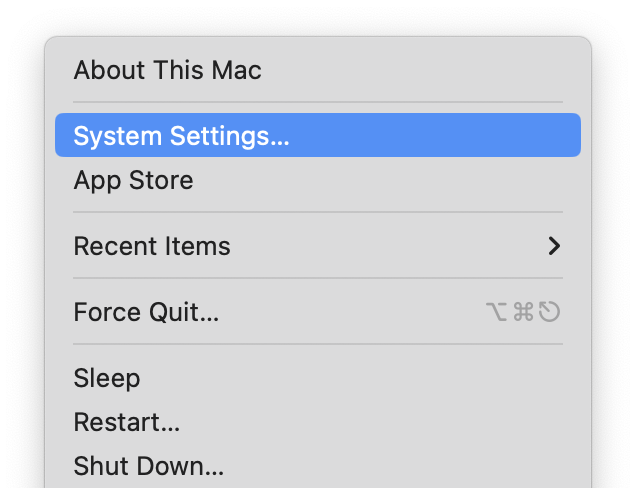 Screenshot: open-settings.pngThe Apple menu open, with System Settings… highlighted.
Go to Accessibility, then Display
Click Accessibility in the sidebar (you may need to scroll down), then click Display.
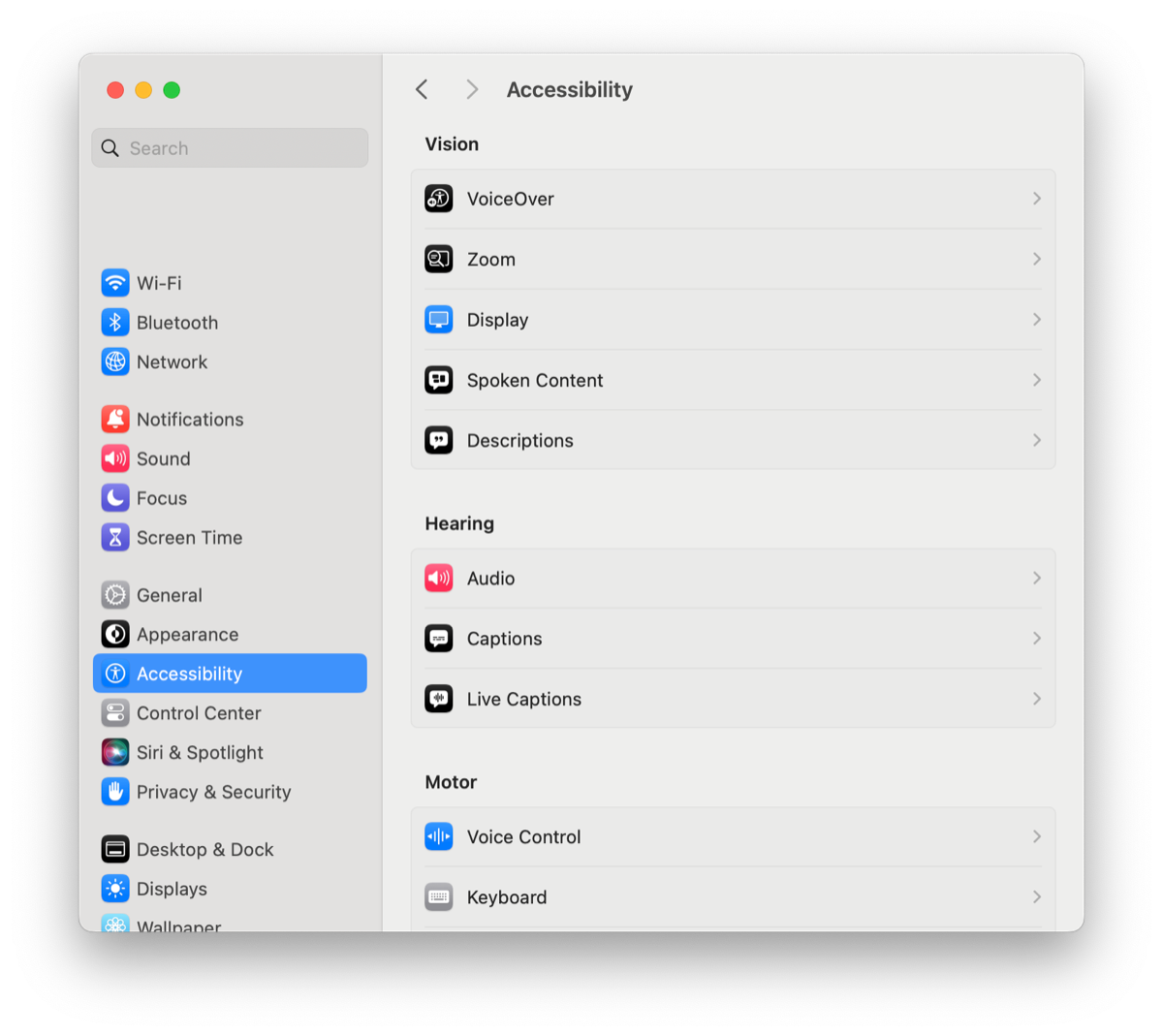 Screenshot: accessibility-display.pngSystem Settings with Accessibility selected in the sidebar and the Display row visible.
Scroll down to Pointer
Scroll to the Pointer section. Everything about the pointer is here: Shake mouse pointer to locate, Pointer size, Pointer outline color, Pointer fill color and Reset Colors.
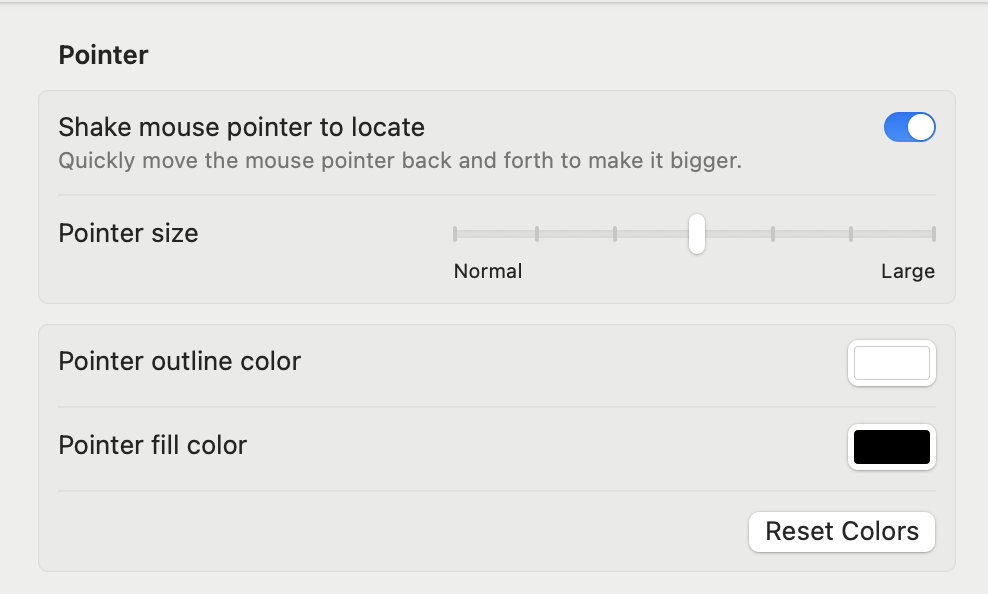 Screenshot: pointer-section.pngThe Display pane scrolled to the Pointer section, showing all five controls.
Drag the Pointer size slider
Drag right to make the pointer bigger, left to go back to normal. It changes live, so stop when you can find it easily.
 Screenshot: size-slider.pngClose-up of the Pointer size slider dragged about halfway toward Large.
Check it
Move the mouse around a busy window. If it still gets lost, try a brighter fill color too: see how to change cursor color.
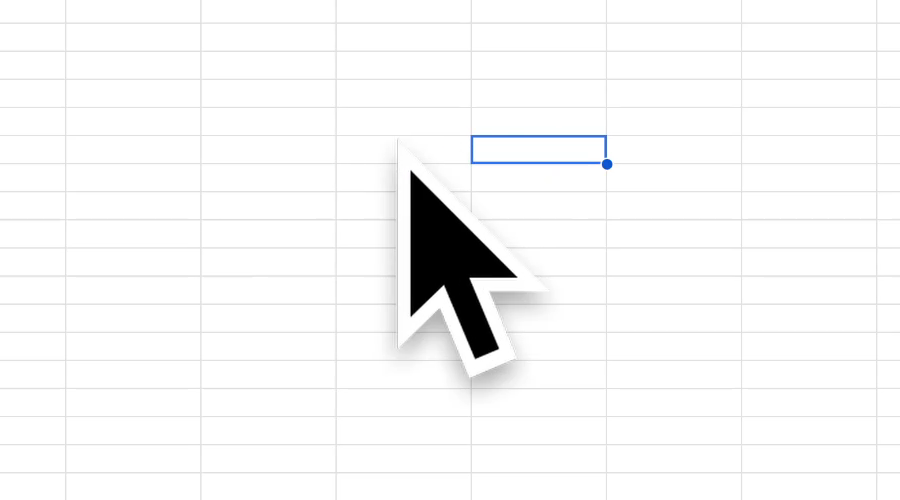 Screenshot: size-after.pngThe enlarged pointer over a busy window. Take it as a frame from a screen recording: still screenshots draw the pointer at normal size.
On older versions of macOS
- macOS 13 Ventura and later (Sonoma, Sequoia, Tahoe): System Settings → Accessibility → Display → Pointer, as above.
- macOS 12 Monterey: Apple menu → System Preferences → Accessibility → Display → Pointer. Apple's guide for Monterey.
- macOS 11 Big Sur and earlier: size only. Pointer colors arrived in Monterey.
How big can the cursor get?
In System Settings, 4× the normal size: that's the far right of the slider. On a big or high-resolution display, or when your screen is shrunk down in a video call or recording, even 4× can be hard to follow.
Why did my cursor suddenly get big?
Usually it's Shake mouse pointer to locate: moving the mouse fast makes the pointer grow for a moment, then it shrinks back. That's on purpose. If it stays big, someone moved the Pointer size slider; drag it back to the left. See shake to find your cursor and getting your cursor back to normal.
Why is my cursor small in screenshots?
macOS draws the pointer at its normal size in still screenshots, whatever size you set. Video recordings show the size you chose.
Questions
How do I make my cursor bigger on a Mac?
Open System Settings → Accessibility → Display → Pointer and drag the Pointer size slider to the right.
What is the maximum cursor size on a Mac?
System Settings goes up to 4× the normal size. Apps like Where's My Mouse? can go further.
Why did my Mac cursor get big by itself?
Shake mouse pointer to locate makes the pointer grow briefly when you move the mouse quickly. Turn it off in the same Pointer settings if you don't want it.
Do I need to restart after changing the cursor size?
No. The pointer changes as soon as you move the slider.