Guides › Cursor too small in recordings
Cursor Too Small in Your Screen Recording? How to Fix It on a Mac
Updated 2026-10-23 · macOS 12 Monterey to macOS 26 Tahoe
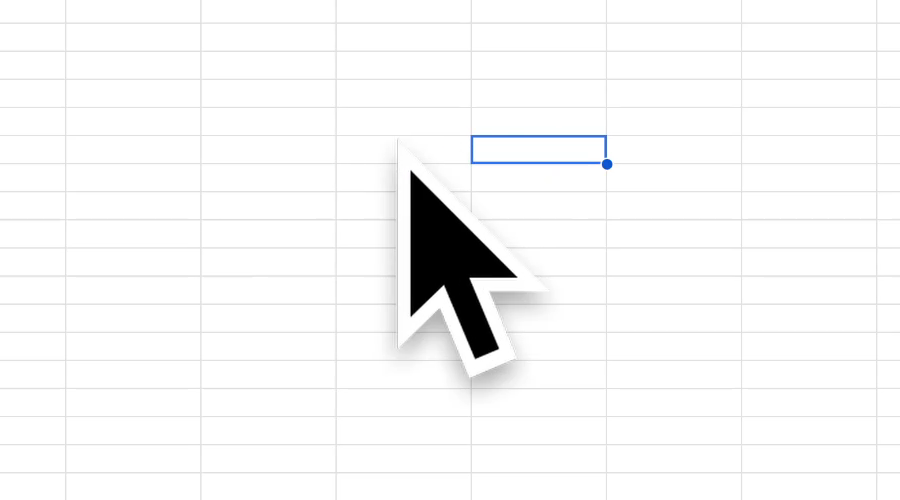
Why the cursor gets lost in recordings
- It's small to begin with. The default arrow is tiny next to a full screen. Once the video is shrunk to a phone, a YouTube player or a social feed, it's a few pixels.
- Compression smears it. Video compression and screen-share compression blur small, fast-moving details first.
- Black on busy backgrounds. A black arrow with a thin white edge disappears over code, spreadsheets and photos.
- Window capture may leave it out. When you capture a single window, some setups don't record the pointer at all.
“I enlarged the cursor to capture the screen. In the recording, however, the cursor is as small as before.” OBS forum
“my learners pointed out to the fact that they almost could not see where my cursor was moving to in the screen.” Adobe Community
How to fix it
Make the pointer bigger
System Settings → Accessibility → Display → Pointer size. For tutorials, about halfway is a good start. Step by step: how to change cursor size.
Give it colors that stand out
A bright fill with a dark or contrasting outline is easy to follow on any background. See how to change cursor color.
Make sure the recorder captures the cursor
In OBS, open the properties of your screen capture source and check that the option to show the cursor is on. Capturing the whole display is more reliable than capturing one window.
Do a 5-second test
Record a few seconds, then watch it at the size your viewers will: on your phone, or in a small window. If you can't follow the pointer there, go bigger.
Don't judge from a screenshot
macOS draws the pointer at normal size in still screenshots, whatever size you set. Recordings show the size you chose; ours above was recorded in OBS.
Fixing it after recording
If the video is already recorded, an editor can only add highlights on top. Screen Studio, Camtasia and ScreenFlow can add cursor effects in editing; Screen Studio records without the cursor and redraws it bigger. For the next recording, fixing the pointer first is quicker.
Questions
Why is my cursor so small in my screen recording?
The default pointer is tiny, and it shrinks further when the video is scaled down or compressed. Make it bigger and brighter before you record.
Why doesn't my bigger cursor show in a screenshot?
macOS draws the pointer at normal size in still screenshots. Video recordings show the size you set.
How do I make my cursor bigger for a screen recording on Mac?
Open System Settings → Accessibility → Display and drag Pointer size to the right before you start recording.
Why is my cursor missing from my OBS recording?
Check that your capture source has the show-cursor option turned on, and try capturing the whole display instead of a single window.